
Blank Timeline Template: How to Choose, Use, and Present Timelines That Actually Communicate
A timeline is one of the most universally useful slide types in any presentation — but it can be surprisingly difficult to design well. Dates get crowded, labels overlap, spacing becomes inconsistent, and what should be a clear chronological story becomes a visual problem for the audience to solve on their own.
A blank timeline template eliminates these structural problems before content is ever added. By starting from a professionally designed, editable framework, presenters can focus entirely on the information they need to communicate — not on the geometry of how to lay it out.
This guide covers every major timeline format, when to use each, and how SlideKit’s library of blank timeline templates supports accurate, professional presentation across business, education, project planning, and financial contexts.
What Is a Blank Timeline Template and Why Does It Matter
A blank timeline template is a pre-structured slide layout that includes all the visual components of a timeline — axis lines, event markers, label placeholders, and date indicators — without any pre-filled content. The structure is built; the content is entirely up to the presenter.
This distinction matters more than it might initially appear. When a timeline is built from scratch on a blank slide, several problems reliably emerge:
- Event markers end up at inconsistent sizes or positions
- Label spacing looks uneven because it was placed by eye rather than by grid
- The axis line shifts when text boxes are moved nearby
- Adding or removing events requires rebuilding surrounding elements
- The overall layout fails to scale cleanly to projection dimensions
A well-designed blank timeline template resolves all of these issues structurally. Markers are pre-spaced. Labels have defined positions. The axis is locked. Adding a new event means duplicating an existing marker, not rebuilding the layout.
SlideKit’s blank timeline template library is built on exactly this principle — every template in the collection is fully editable, structurally sound, and designed to maintain visual integrity.
Common Timeline Formats and When to Use Each
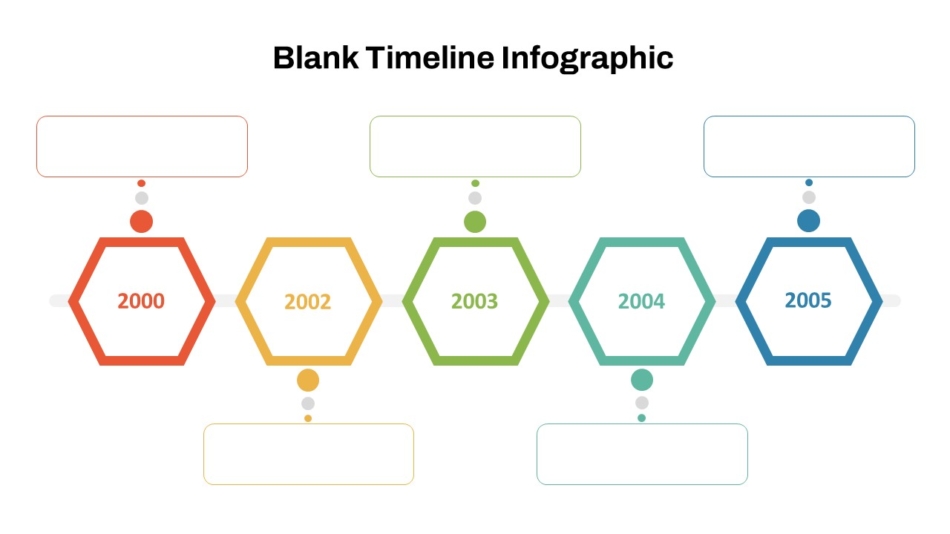
Not all timelines serve the same purpose. The format — how dates are spaced, how many parallel tracks exist, whether the layout is horizontal or vertical — should match the type of information being presented.
| Timeline Format | Best Used For | Key Characteristic |
| Linear horizontal | Project milestones, historical sequences | Left-to-right chronological flow |
| Horizontal arrow | Process flows, strategic phases | Directional emphasis, forward momentum |
| Vertical (scrolling) | Annual reports, detailed event logs | Works better in document-style presentations |
| Multi-year | Long-range strategy, organizational history | Spans multiple calendar years |
| Year-by-year | Annual planning, academic calendars | One row or section per year |
| Parallel / multi-track | Comparing simultaneous workstreams | Two or more tracks on the same axis |
| Color-coded | Multi-team or multi-category timelines | Color differentiates types or owners |
| Ruler-style | Measurement-oriented planning, sprint tracking | Graduated scale with precise intervals |
| Financial planning | Budget cycles, fiscal calendars, investment phases | Integrated with financial milestones |
Understanding which format fits the content before selecting a template prevents the common problem of forcing information into a layout that does not match its natural structure.
Blank Timeline Templates for PowerPoint
PowerPoint remains the primary presentation platform for corporate and enterprise environments. A timeline template built natively for PowerPoint uses the platform’s grid, alignment guides, and grouping features correctly — which means the template remains editable and structurally stable when content is added or modified.
SlideKit’s PowerPoint timeline templates are designed with the following principles:
- Editable color themes — Timeline colors can be updated from the Design panel without manually recoloring individual elements
- Scalable layouts — Templates are built to maintain proportions when the slide is resized or exported
- Compatible font sets — Font choices are limited to typefaces that render consistently across Windows and macOS PowerPoint versions
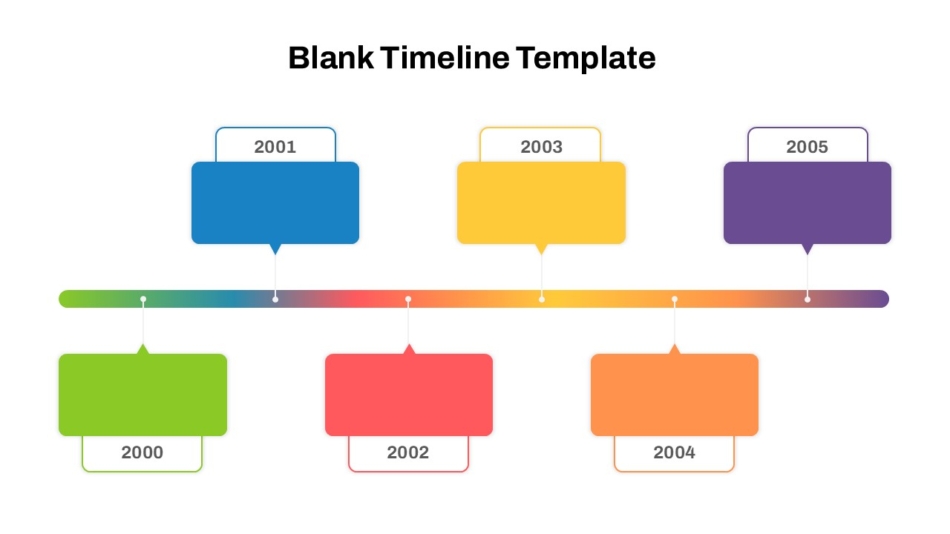
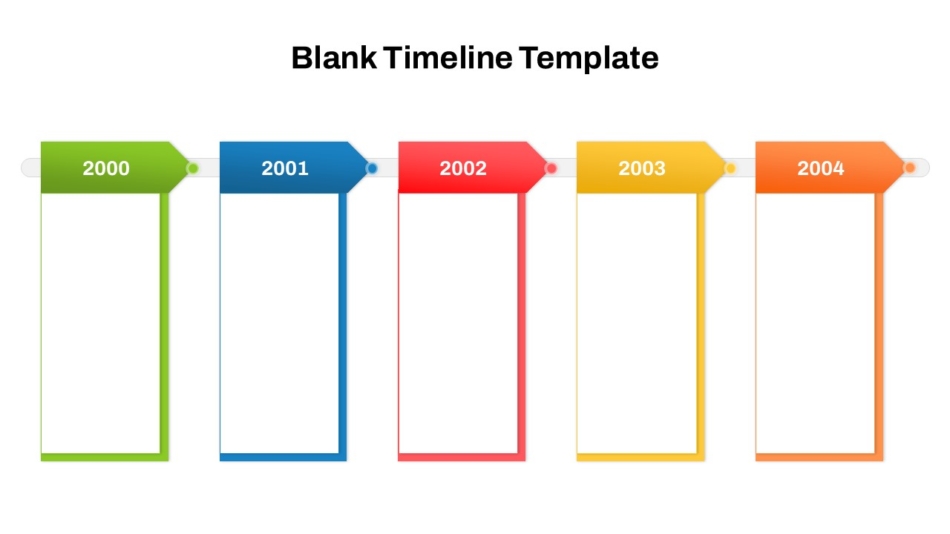
The blank timeline charts PowerPoint template is a versatile option that covers multiple chart-style timeline formats within a single file, giving presenters layout flexibility without requiring multiple template downloads. For a clean, single-axis horizontal format, the horizontal blank timeline template provides a precise, minimal structure that works across business, academic, and planning contexts.
Blank Timeline Templates for Google Slides
Google Slides introduces a specific set of challenges for timeline design. Because the platform handles font rendering, spacing, and grid behavior differently from PowerPoint, templates imported from .pptx files often arrive with misaligned elements, substituted fonts, or shifted layouts. A timeline template built natively for Google Slides avoids all of these issues.
SlideKit’s Google Slides timeline templates are designed to function correctly in the browser environment — with spacing, text sizes, and layout proportions calibrated for Google Slides’ rendering engine rather than assumed to transfer intact from PowerPoint.
Key advantages of using a natively built Google Slides timeline template:
- Real-time collaboration — Multiple team members can add or edit timeline events simultaneously without version conflicts
- Shared access — Stakeholders can view and comment on the timeline without needing to install software
- Cross-device access — The presentation renders correctly on any device with a browser
The empty timeline template from SlideKit is available for both platforms and functions as a clean starting point for any timeline type — with no pre-filled content, no decorative elements that need to be removed, and a layout structure that is immediately ready for customization.
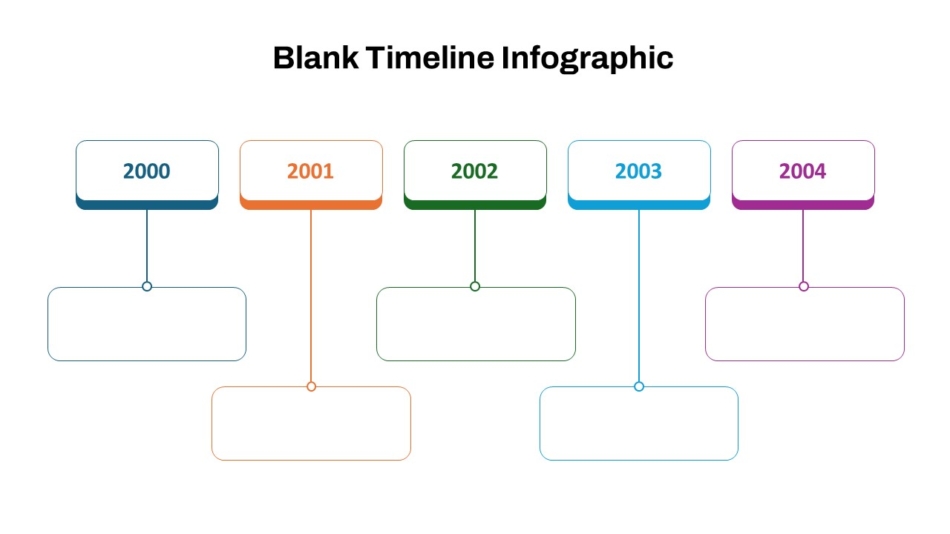
Horizontal vs Vertical Timelines: Choosing the Right Orientation
The orientation of a timeline — horizontal or vertical — affects how the audience reads it, how much content can be accommodated, and how well the layout adapts to projection environments.
Horizontal timelines are the most common format for presentation slides. They align naturally with how Western audiences read — left to right — and they use the wide 16:9 slide canvas efficiently. Horizontal timelines work well for:
- Project milestone sequences
- Product development phases
- Historical event chronologies
- Strategic planning phases
- Process flow presentations
Vertical timelines are better suited for document-style presentations, annual reports, and contexts where the audience scrolls or reads downward through the content. They become harder to read on a standard widescreen slide when more than five or six events are included.
For most presentation contexts, a horizontal layout is the stronger choice. SlideKit’s horizontal arrow blank timeline template cover the most common horizontal formats.

The arrow format is particularly effective in sales and strategic presentations, where the timeline is not just showing sequence but communicating progress and direction.
Multi-Year and Long-Range Timeline Templates
When a timeline needs to span multiple years — a five-year strategic plan, a company history, a product evolution story — standard single-row templates quickly run out of visual space. Events become compressed, labels overlap, and the layout loses its readability.
Multi-year timeline templates solve this by distributing events across a larger visual scale or across multiple rows, each representing a distinct year or phase.
SlideKit’s multi-year blank timeline template is structured for exactly this use case. The layout maintains consistent spacing and label clarity across a full multi-year span without requiring the presenter to manually manage proportions or redistribute events when dates are added or changed.
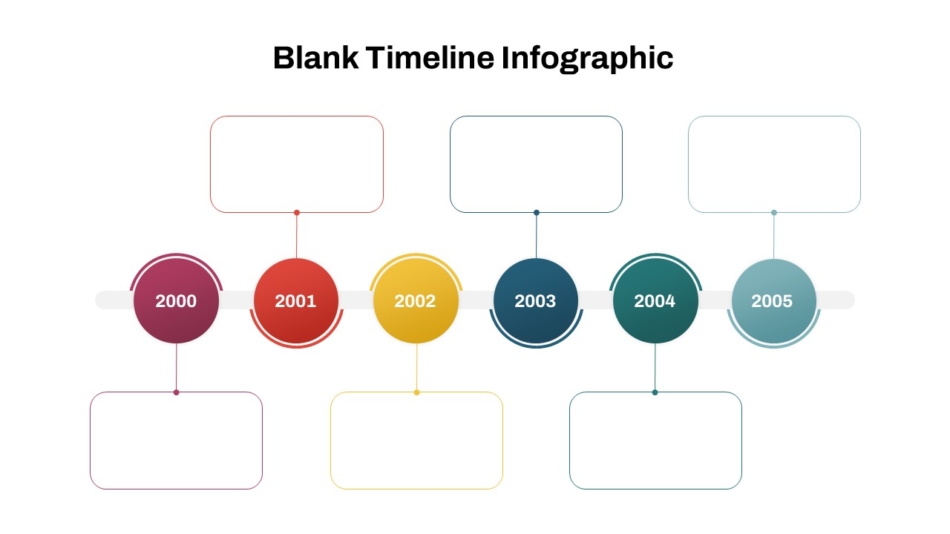
For planning cycles that need to present one year at a time in sequence — common in annual strategy reviews, academic planning, or budgeting cycles — the year-by-year blank timeline template offers a structured row-per-year layout that keeps each annual period visually distinct while maintaining a coherent overall structure across the full deck.
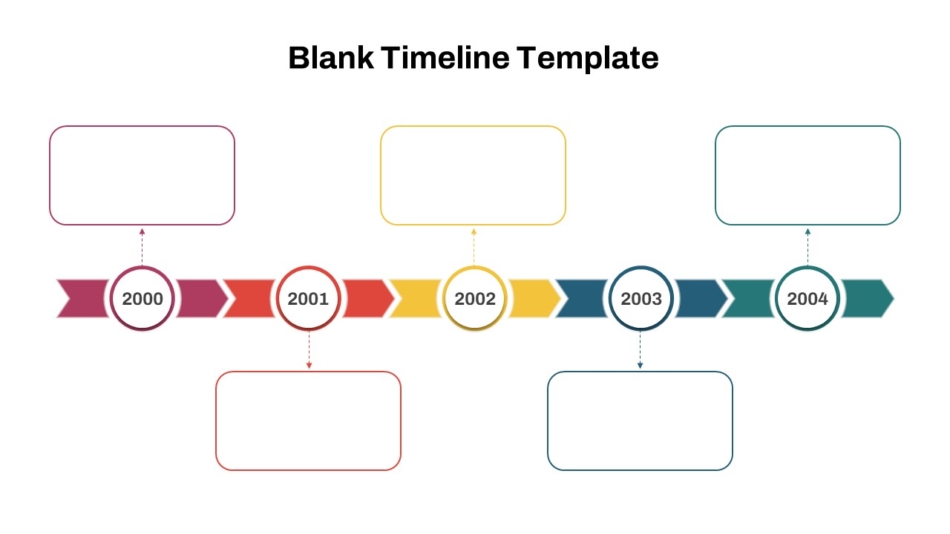
The colorful yearly blank timeline template extends this format with color-differentiated annual periods — a practical choice for presentations where multiple years need to be compared simultaneously and color provides the fastest visual orientation cue for the audience.
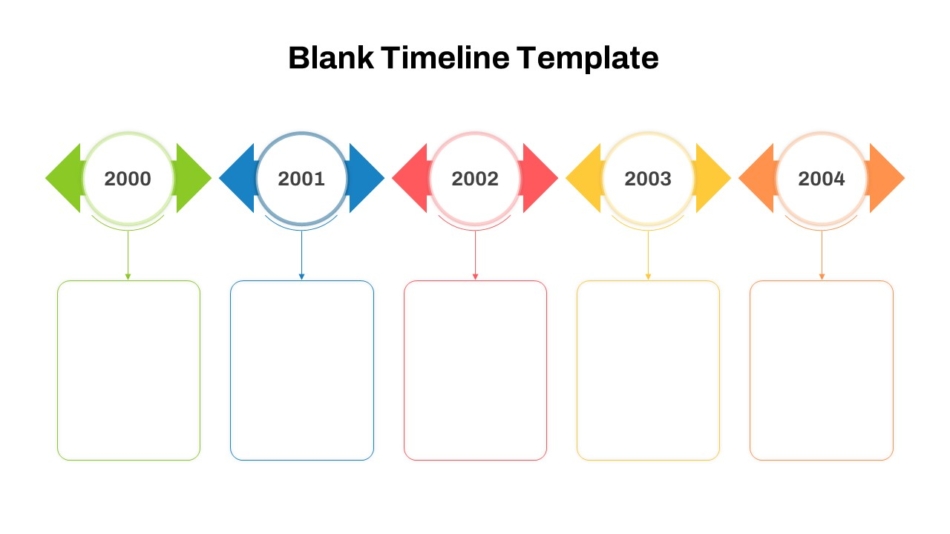
Color-Coded and Parallel Timeline Layouts
In complex projects and multi-team environments, a single-track timeline often fails to represent the actual structure of the work. When multiple workstreams, departments, or categories operate simultaneously, a parallel or color-coded timeline layout communicates that complexity far more accurately than a single line of events.
Color-coded timelines use color to differentiate event types, owners, or categories. An audience can immediately understand that blue events belong to one workstream and orange to another — without reading every label. The modern color-coded layout blank timeline PowerPoint template is designed for this purpose, with a structured color system that is easy to customize while remaining visually coherent.
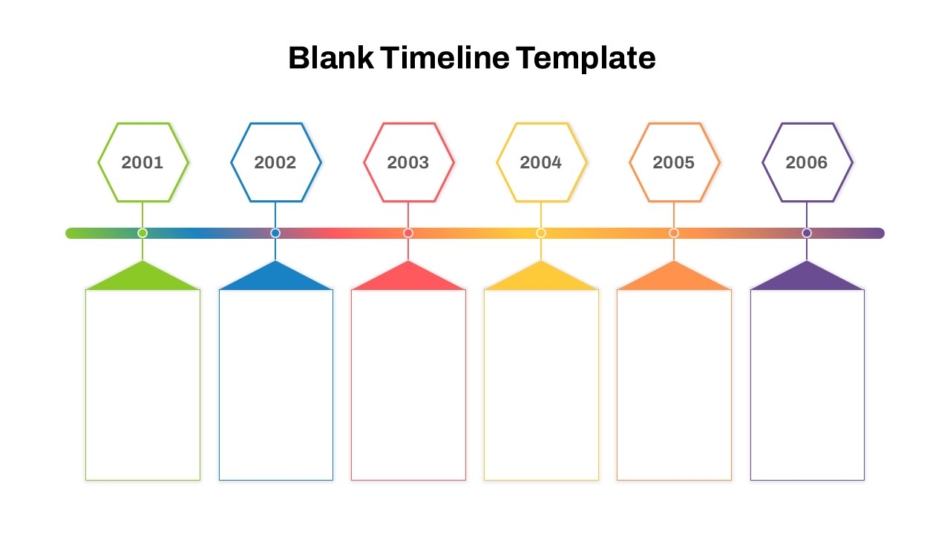
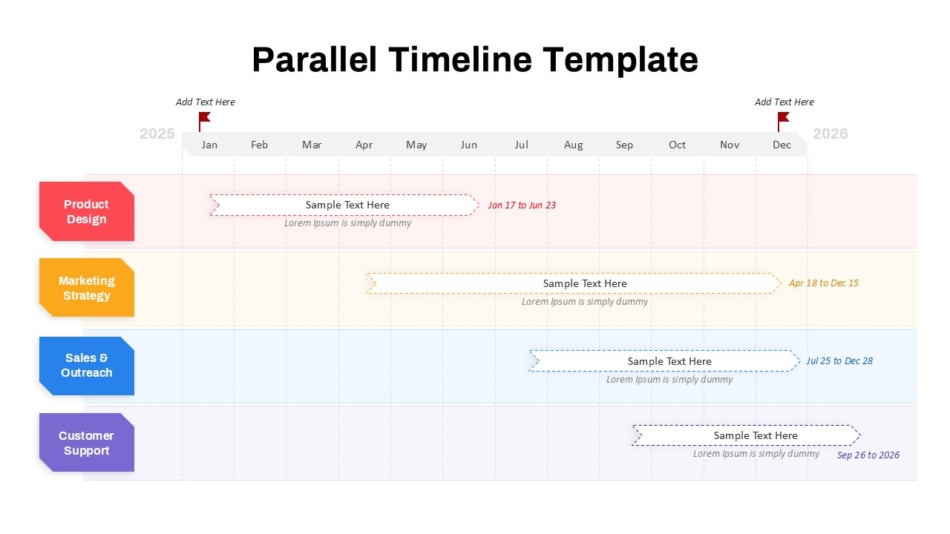
Parallel timelines present two or more tracks on the same slide, each running along its own horizontal axis. This format is particularly effective for:
- Comparing development timelines across multiple teams
- Presenting a product roadmap alongside a marketing calendar
- Showing dependencies between engineering and design workstreams
- Demonstrating where two organizational processes intersect
SlideKit’s parallel timeline PowerPoint slide template provides a pre-built two-track layout that maintains visual alignment between tracks — a critical structural requirement that is difficult to achieve manually without a dedicated template.
Project and Roadmap Timeline Templates
Project timelines and product roadmaps serve a specific communication function: they show what is being built, when each component is expected to be complete, and how individual phases relate to the overall delivery schedule.
These timelines often need to communicate to multiple audiences simultaneously — engineering teams who need precise milestone dates, executive stakeholders who need phase-level summaries, and clients who need to understand delivery expectations without technical granularity.
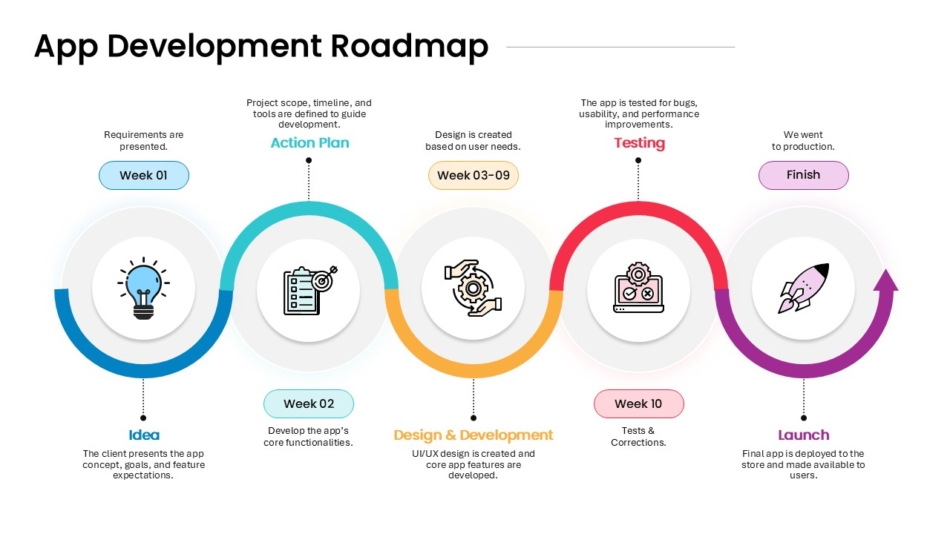
A well-structured project timeline template accommodates all three levels of detail in a single coherent layout. SlideKit’s app development roadmap template for PowerPoint and Google Slides is built for software and product teams presenting development cycles to mixed audiences. It includes dedicated layout areas for sprint phases, feature milestones, and release gates — structured so that technical and non-technical stakeholders can each extract the information most relevant to them.
For general project use, the blank timeline formats in the SlideKit library provide the structural foundation — presenters add the milestones, phases, and dates specific to their project without rebuilding the layout from scratch.
Financial and Planning Timeline Templates
Financial timelines require a higher degree of precision than project or historical timelines. Budget cycles, investment phases, fiscal year planning, and quarterly financial milestones all involve dates and intervals that must be accurate — a visually approximate layout is not sufficient in a financial presentation context.
Financial planning timeline templates are specifically designed with structured date intervals, pre-built milestone markers for planning cycles, and layouts that integrate naturally with supporting financial data on adjacent slides.
SlideKit’s financial planning timeline template for PowerPoint and Google Slides addresses this requirement directly. The layout is calibrated for fiscal planning communication — with clear period markers, structured milestone labeling, and a visual system that reads professionally in both internal board presentations and external investor contexts.
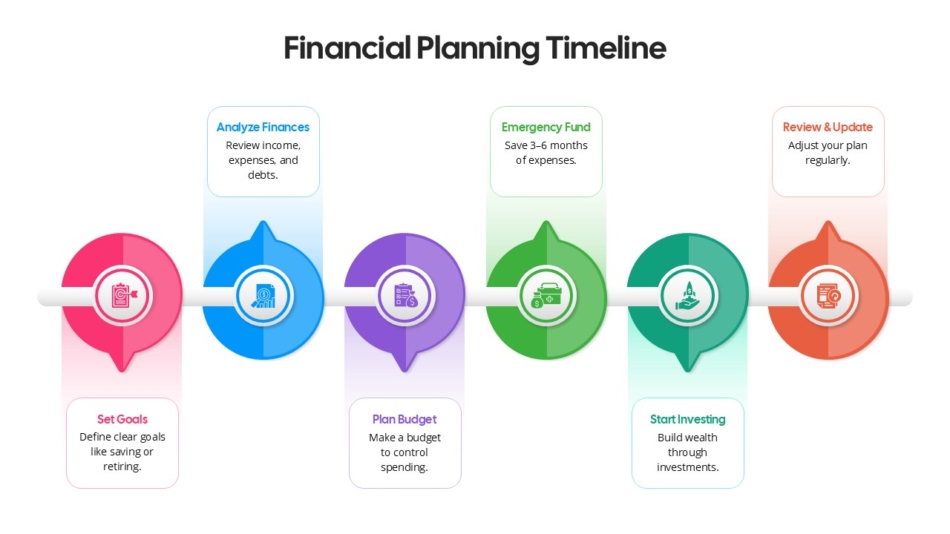
Using a financial-specific timeline template, rather than adapting a general project timeline, ensures that the structural logic of the layout matches the structural logic of the financial information being presented.
Conclusion: Start with Structure, Present with Confidence
A blank timeline template is not simply a convenience — it is a structural solution to a recurring presentation problem. When the layout is pre-built, proportioned correctly, and designed to hold real content without breaking, the presenter can focus entirely on the information rather than the geometry of how to display it.
The right blank timeline template depends on the context: the time span being represented, the number of tracks required, the audience’s level of detail tolerance, and the platform being used. A single-track horizontal layout serves most business and educational presentations well. Multi-year, parallel, color-coded, and financial formats address more complex requirements without sacrificing readability.
SlideKit’s timeline template library covers all of these formats — available for both PowerPoint and Google Slides, fully editable, and designed to maintain visual integrity under real content conditions. Whether the goal is a clean project milestone overview, a multi-year strategic roadmap, or a precise financial planning calendar, starting from a well-structured blank timeline template is the most reliable path to a presentation that communicates clearly and holds up under scrutiny.
Frequently Asked Questions
A blank timeline template is a pre-built slide layout that includes the structural components of a timeline — markers, label placeholders, and date indicators — with no pre-filled content. It gives presenters a ready-to-use visual framework that they populate with their own dates, events, and descriptions.
Yes — many templates are available in both formats. SlideKit’s timeline templates are offered in PowerPoint and Google Slides versions, so teams can maintain visual consistency regardless of which platform they use to present.
A well-designed timeline template is fully editable. All text placeholders, marker positions, colors, and labels should be modifiable without breaking the underlying layout. SlideKit’s timeline templates are built on grouped, unlocked elements that can be adjusted independently or as a unit.
SlideKit templates are delivered as fully editable files. Text placeholders can be replaced directly by clicking and typing. Colors can be updated through the theme or by selecting individual elements. No design software is required beyond PowerPoint or Google Slides.