
How to Convert Canva to Google Slides Presentation
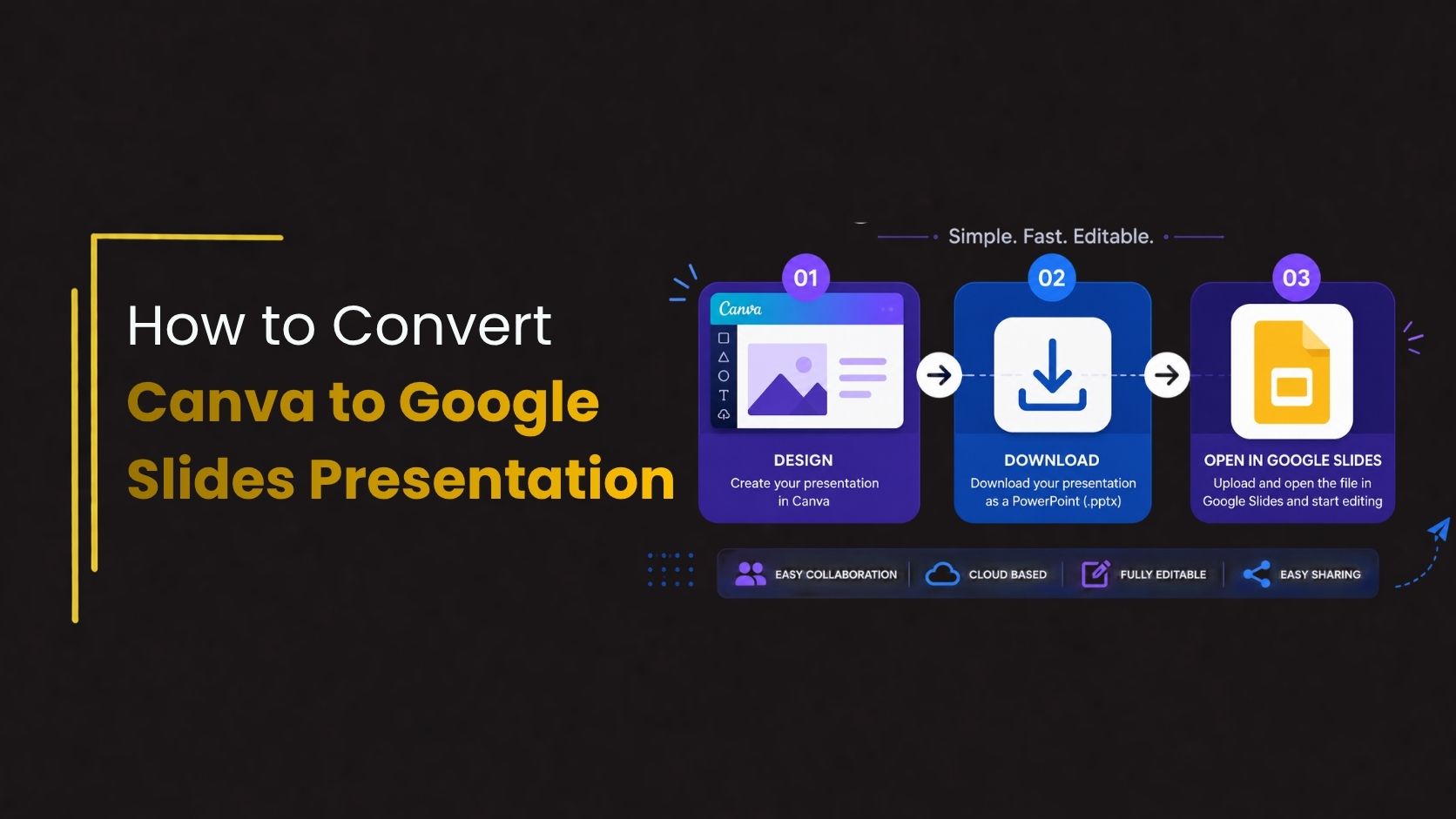
Canva has become one of the most popular design tools for creating presentations because of its easy drag-and-drop editor and modern design templates. However, many students, educators, marketers, and business professionals eventually need to edit or present their Canva slides in Google Slides for collaboration, sharing, or classroom use.
Knowing how to convert a Canva to Google Slides presentation correctly helps preserve layouts, images, fonts, and animations while making slides easier to edit online. Whether you are creating academic presentations, business reports, startup pitch decks, or marketing presentations, understanding the conversion process can save time and improve workflow efficiency.
This guide explains step-by-step how to convert Canva presentations into Google Slides while maintaining clean formatting and professional slide quality.

Why Convert Canva Presentations to Google Slides?
Google Slides offers cloud-based collaboration, easy sharing, and compatibility across devices. Many users design slides in Canva but later move to Google Slides for teamwork, classroom presentations, or online editing.
Benefits of Google Slides
- Easy online collaboration
- Real-time editing
- Cloud-based storage
- Compatible across devices
- Easy sharing and commenting
- Works with Google Workspace tools
Google Slides is especially useful for teams, teachers, students, and remote presentations.
Method 1: Download Canva Presentation as PowerPoint
The easiest way to convert Canva to Google Slides is by downloading the Canva presentation as a PowerPoint file and importing it into Google Slides.
Step 1: Open Your Canva Presentation
Open the presentation you want to convert in Canva.
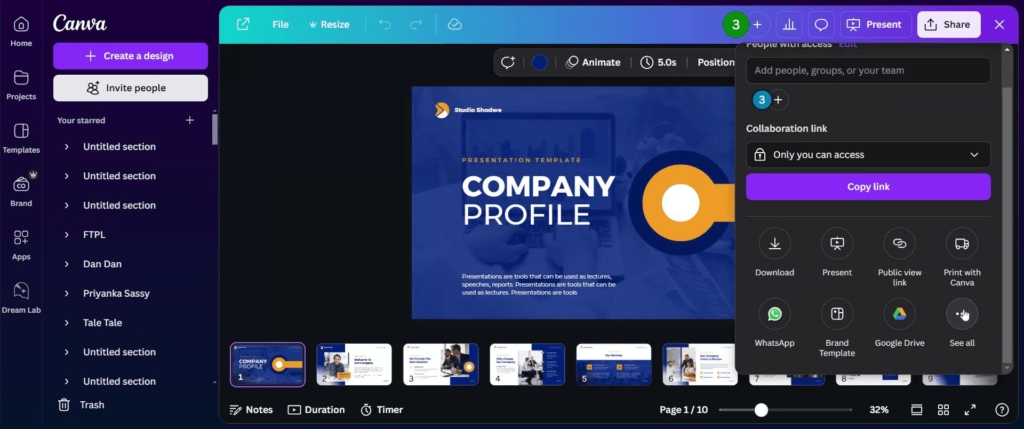
Step 2 : Download as PowerPoint
- Click the Share button
- Select Download
- Choose Microsoft PowerPoint (.pptx)
- Click Download
This exports the presentation in PowerPoint format.
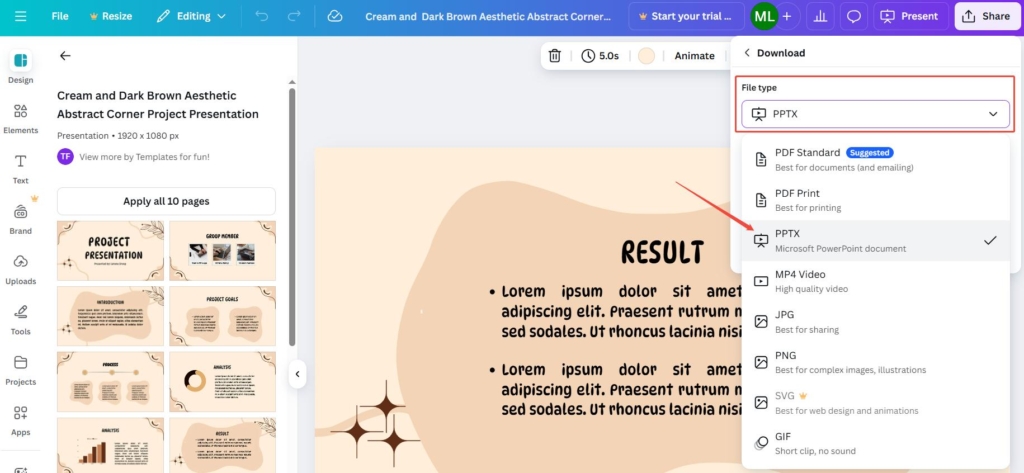
Step 3: Upload to Google Slides
After downloading the PowerPoint file:
- Open Google Slides
- Click File → Open
- Upload the downloaded PPTX file
- Google Slides automatically converts it
Your Canva presentation is now editable in Google Slides.
Method 2: Import Canva Slides Using Google Drive
Another method is uploading the PowerPoint file directly into Google Drive.
Steps
- Download Canva presentation as PPTX
- Open Google Drive
- Upload the presentation file
- Right-click the file
- Select Open With → Google Slides
Google Slides will automatically convert the presentation.
Common Formatting Issues During Conversion
Although Canva presentations usually convert well, some formatting elements may change after importing into Google Slides.
Common Problems
- Font replacements
- Shifted text alignment
- Missing animations
- Image resizing issues
- Spacing inconsistencies
- Unsupported Canva elements
Most issues can be fixed quickly inside Google Slides.
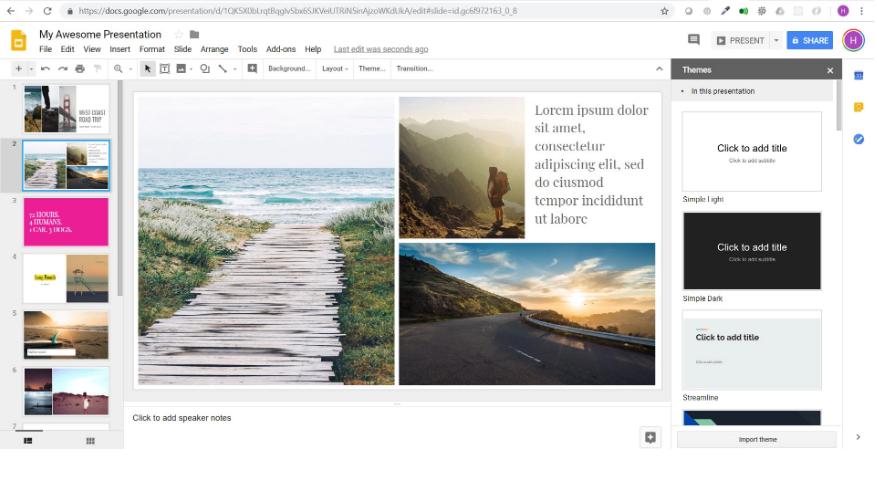
Best Presentation Design Practices
Converting slides is also a good opportunity to improve presentation design quality.
- Use Clear Typography : Readable typography improves communication and slide clarity.
- Maintain Visual Hierarchy : Use large headings, balanced spacing, and highlighted key points.
- Keep Slides Minimal : Avoid overcrowding slides with excessive text or graphics.
- Use Consistent Colors : Maintain a consistent color palette throughout the presentation.
- Add Visual Balance : Use whitespace to create cleaner and more organized layouts.
Use Professional Presentation Templates
Using professionally designed templates helps improve presentation quality and saves design time.
Benefits include:
- Consistent layouts
- Better typography
- Modern visual styles
- Faster presentation creation
- Improved audience engagement
Students, educators, marketers, and businesses often use creative PowerPoint templates and Google Slides templates for presentations.
👉Explore modern presentation layouts on SlideKit for PowerPoint and Google Slides.
Best Presentation Types for Google Slides
Google Slides works especially well for:
- Educational presentations
- Startup pitch decks
- Business reports
- Team collaboration projects
- Marketing presentations
- Webinar presentations
- Portfolio presentations
Professionally designed creative PowerPoint slides improve readability and presentation flow across all these use cases.
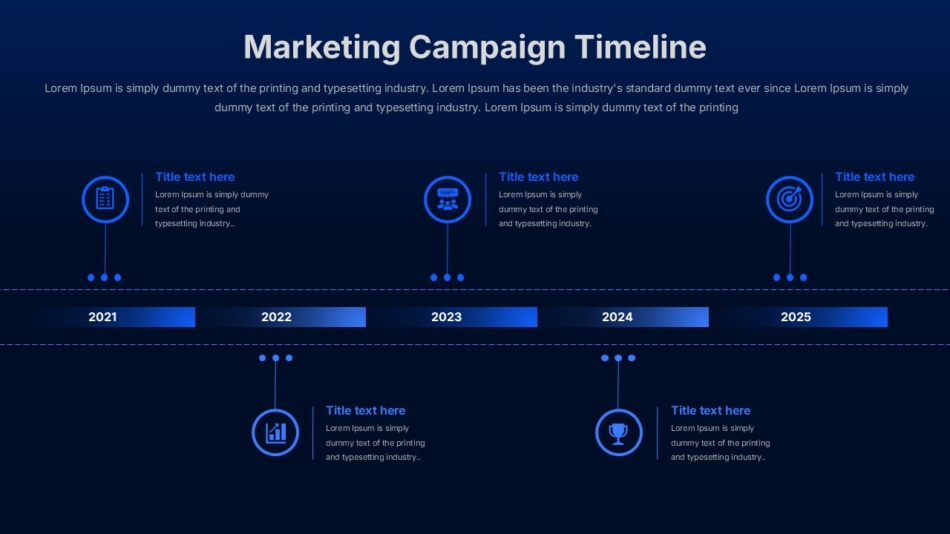
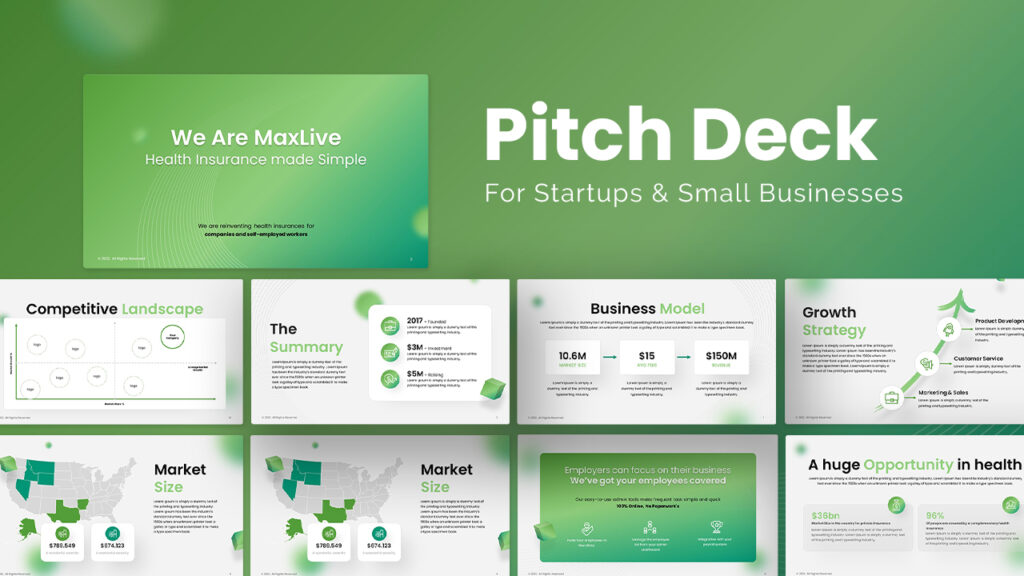
👉SlideKit offers professionally designed presentation templates compatible with both PowerPoint and Google Slides.
Conclusion
Learning how to convert a Canva to Google Slides presentation helps improve collaboration, accessibility, and editing flexibility. By exporting Canva presentations as PowerPoint files and importing them into Google Slides, users can continue editing presentations while preserving most design elements.
Using clean layouts, readable typography, and professional presentation templates further improves presentation quality. Whether you are preparing academic slides, marketing presentations, or business reports, combining Canva design flexibility with Google Slides collaboration creates an efficient presentation workflow. SlideKit templates help users create cleaner and more engaging presentations without starting from scratch