
Download Professional Presentation Themes for PowerPoint & Google Slides
Creating a presentation often starts with a common frustration. The content may be ready, but the slides look inconsistent. Colors do not match, fonts change across slides, and layouts are different. Fixing these issues manually takes time, especially when presentations are meant for clients, leadership teams, or external stakeholders.
This is why themes for presentations are widely used in professional settings. Instead of designing slides from scratch, ready-made themes provide a consistent visual foundation that works across PowerPoint and Google Slides. This guide explains how professional themes work, where they are used, and how to download and apply them correctly.
What Are Professional Presentation Themes?
A professional presentation theme defines the visual structure of an entire slide deck. It controls layout styles, font hierarchy, and color usage so every slide follows the same design rules.
In PowerPoint and Google Slides, a theme typically includes:
- Pre-built slide layouts for titles, content, charts, and visuals
- A predefined color set used across all slides
- Font styles that remain consistent throughout the presentation
For users working in Google Slides, a Google Slide theme template allows presentations to stay visually consistent even when multiple team members collaborate on the same file.
Key Features of High-Quality Presentation Themes
Not every theme is suitable for professional communication. Well-designed themes share a few important characteristics.
Structured Layouts
Slides are built with clear alignment and spacing. Content areas are defined so text, charts, and visuals remain readable and balanced.
Consistent Typography
Professional themes apply the same font rules across all slides. Headings, body text, and captions follow a clear hierarchy, which helps audiences follow the message.
Controlled Color Use
Colors are applied with purpose. Many users look for guidance on how to change presentation theme colors in PowerPoint, and good themes allow color adjustments without breaking slide layouts.
Platform Compatibility
High-quality themes work smoothly in both PowerPoint and Google Slides, preserving formatting and layout structure.
Presentation Theme Ideas Based on Use Case
Different presentation goals require different visual approaches. Below are practical presentation theme ideas based on common professional scenarios.
Business and Corporate Presentations
Business presentations often include reviews, strategy discussions, and internal updates. These presentations benefit from themes that are clean, structured, and neutral.
Business proposal presentation templates are commonly used in corporate settings because they emphasize clarity, consistent layouts, and professional typography, keeping the focus on content rather than decoration.

(Download Business proposal presentation templates)
Marketing and Creative Presentations
Marketing presentations rely more heavily on visuals, comparisons, and performance highlights. Themes for this use case often include bolder color combinations and flexible layouts.
Color-focused Google Slide theme templates are useful for campaign reporting, brand storytelling, and creative planning sessions.
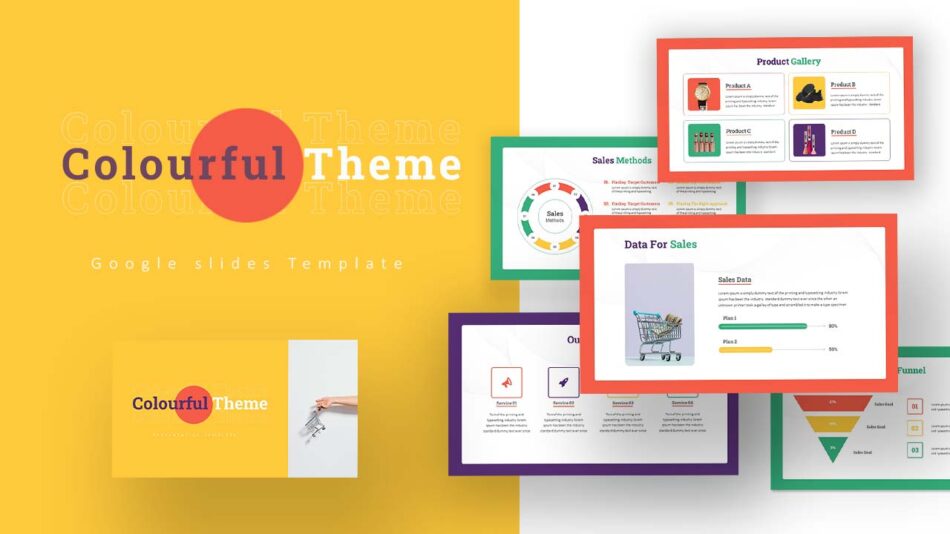
(Download Colorful Google Slide Themes)
Startup and Product Presentations
Startup presentations usually combine business context with product information. Pitch decks, roadmaps, and investor updates need themes that support charts, timelines, and structured content.
Themes designed for modern business presentations are often considered among the best PowerPoint themes for presentations in startup and product-focused environments.
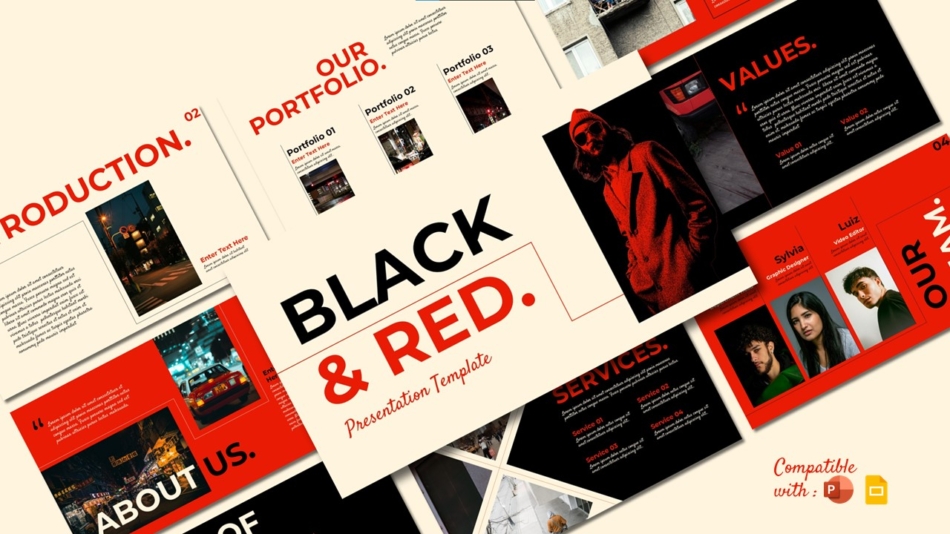
(Download Black and Red Presentation Template)
Thematic and Specialized Presentations
Some presentations require a visual style that reflects a specific subject or industry. Music, creative projects, and informal learning sessions often use themed designs.
A specialized Google Slide theme built around a topic helps presentations feel aligned with their subject matter.
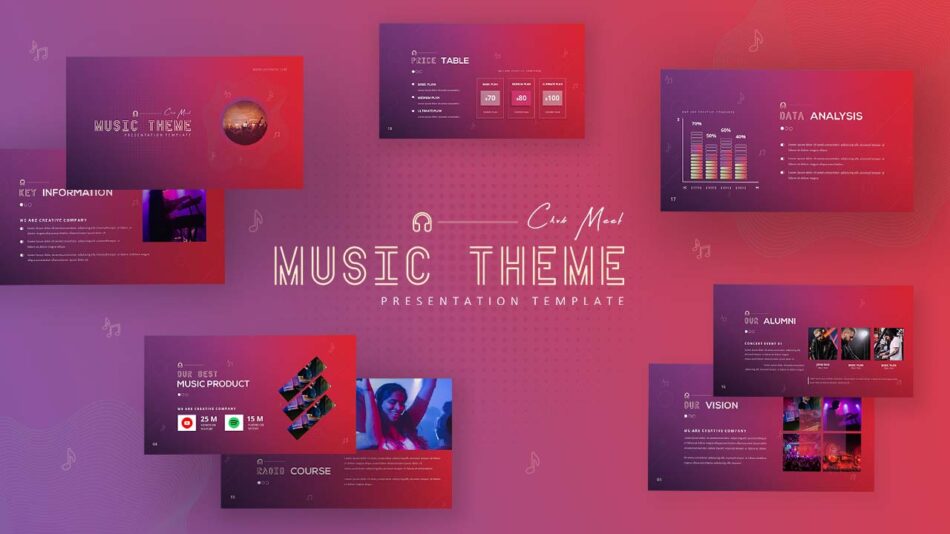
(Download Music Theme Google Slide Template)
How to Download and Customize Presentation Themes
Downloading professional themes is only the first step. Using them correctly ensures slides remain clear and consistent.
To make the most of a presentation theme:
- Apply the theme in PowerPoint or Google Slides to set consistent design across all slides
- Use built-in layouts to keep content organized
- Update text, images, and colors without changing spacing or alignment
For PowerPoint users, PowerPoint presentation themes with adjustable color palettes allow teams to match brand guidelines without redesigning slides.
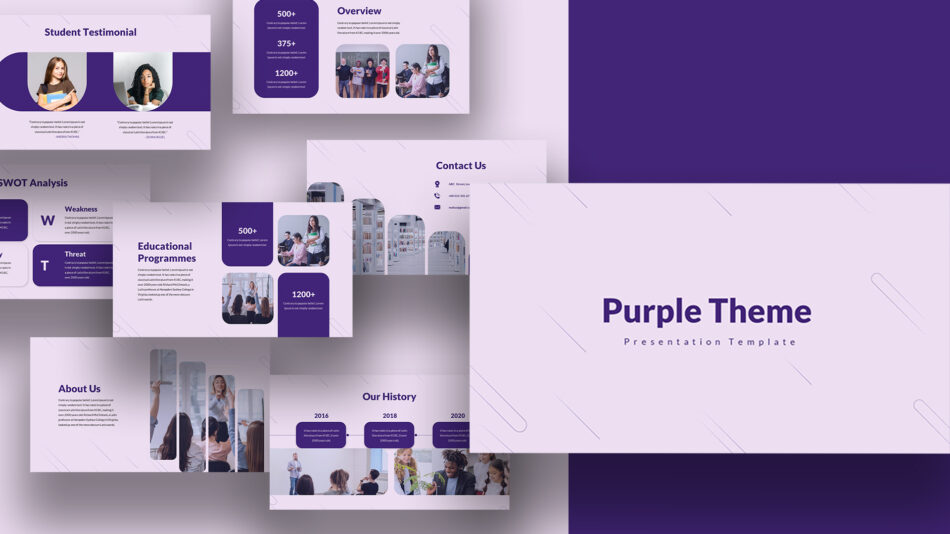
(Download Purple PowerPoint Template)
PowerPoint vs Google Slides Themes
Both platforms support professional themes, but they serve different workflows.
PowerPoint themes often include detailed slide masters and are commonly used for offline presentations or formal reporting.
Google Slides themes support browser-based editing and real-time collaboration, making them suitable for distributed teams and shared projects.
Choosing between the two depends on how the presentation will be created, edited, and delivered.
Best Practices for Choosing Presentation Themes
Before selecting a theme, consider:
- The audience and presentation context
- Whether the presentation is formal, creative, or instructional
- If the slides will be reused across teams or departments
The best themes support clarity and consistency. Overly decorative designs often distract from the message, while structured themes keep attention on the content.
Conclusion: A Reliable Foundation for Professional Presentations
Presentations often lose impact when design decisions are made inconsistently. Themes for presentations provide a reliable visual structure that supports professional communication in both PowerPoint and Google Slides.
By choosing the right PowerPoint presentation themes or Google Slides themes, teams can create presentations that look organized, consistent, and suitable for business use—without rebuilding layouts for every new deck.