
Best Professional PowerPoint Templates for Free Download
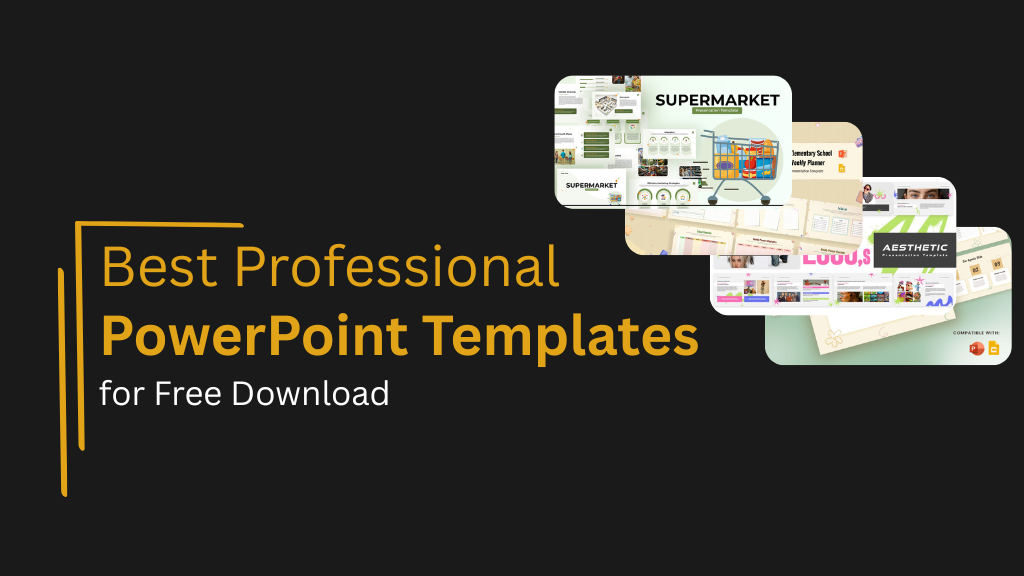
Project presentations carry weight in business contexts. Whether you’re reporting to stakeholders, pitching to clients, or updating leadership teams, how your slides look affects how your content gets received. Poorly formatted presentations undermine credible work. Professional templates solve this problem by providing structured, polished layouts that make your content look organized before you add a single word.
This guide covers the best professional PowerPoint templates available for free download, explaining what makes templates truly professional, which formats suit different business needs, and when free options serve well versus when premium templates make sense.
What Makes a PowerPoint Template Professional
Professional templates share specific characteristics that separate them from casual or decorative designs. Understanding these features helps you choose templates that actually support business credibility.
Clean, Consistent Layout Structure
Professional templates use grid-based layouts where elements align precisely. Text boxes, images, and graphics line up horizontally and vertically rather than appearing randomly positioned. This alignment creates visual order that audiences register subconsciously as competent and organized.
Margins remain consistent across all slides. White space around content appears intentional rather than accidental. Spacing between elements follows regular patterns that guide eyes through information naturally.
Readable Typography with Clear Hierarchy
Font choices in professional templates prioritize readability over decoration. Sans-serif fonts like Arial, Calibri, or custom corporate fonts work reliably across presentation contexts. Font sizes create clear hierarchy where headlines dominate visually, key content stands out, and supporting details recede appropriately.
Professional templates limit font families to one or two maximum. Mixing three or four different fonts creates visual inconsistency that undermines credibility regardless of how attractive individual fonts might be.
Multiple Layout Variations
Good templates include various slide layouts addressing different content types. Title slides, content slides with different text and image configurations, data visualization layouts, section dividers, and closing slides all appear in complete template sets.
This variety means you can build entire presentations using the template without forcing content into inappropriate layouts or creating slides from scratch.
Professional Visual Elements
Icons, graphics, and visual elements in professional templates match stylistically. All icons follow the same design approach rather than mixing different styles. Image placeholders accommodate business photography without forcing specific image types.
Decorative elements serve communication purposes rather than just filling space. Every visual component either conveys information or supports the slide’s hierarchy and readability.
Free Templates for Business and Project Presentations
These free professional PowerPoint templates cover diverse business presentation needs while maintaining design quality that supports credibility.
Free Simple Education Template
For training presentations, educational content, or learning-focused materials, the free simple education template for PowerPoint and Google Slides provides clean, accessible layouts appropriate for knowledge transfer contexts.
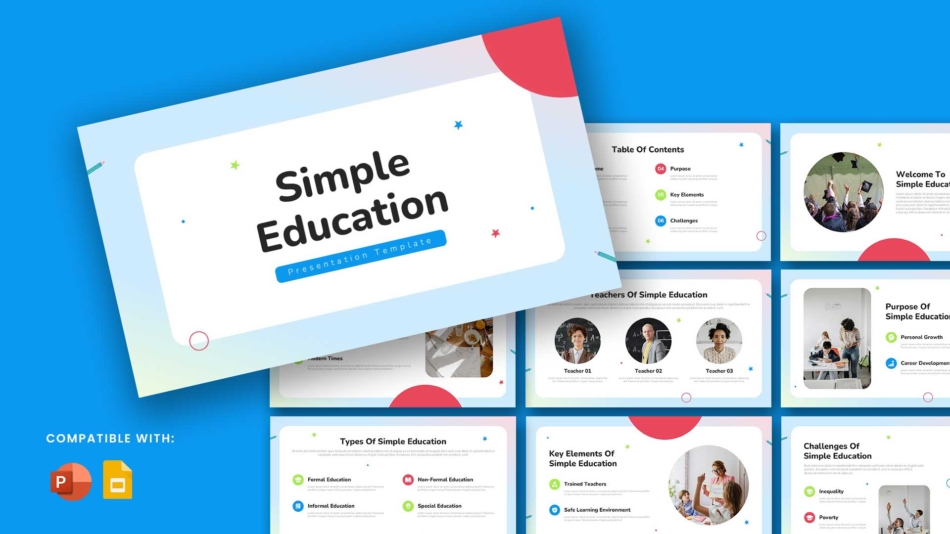
Simple doesn’t mean basic. This template uses clear hierarchy, readable typography, and structured layouts that help learners process information without visual distraction. It works for employee training, client education, workshop materials, or any presentation where teaching rather than selling is the primary purpose.
Free Software Product Marketing Plan Template
Technology product launches and marketing strategy presentations benefit from the free software product marketing plan template for PowerPoint and Google Slides. It provides structures specifically designed for go-to-market planning, feature positioning, and product roadmap communication.
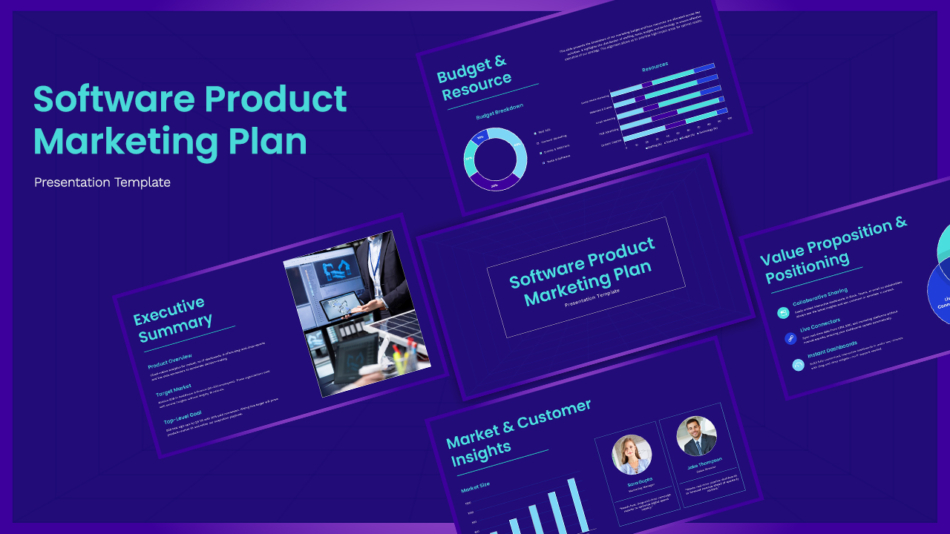
This template works for SaaS companies, technology startups, product teams presenting to leadership, or marketing professionals outlining launch strategies. The layouts accommodate product screenshots, feature comparisons, pricing structures, and timeline information common in product marketing contexts.
Free Mobile App Presentation Template
Mobile application presentations need formats that showcase app interfaces, explain user flows, and present business models clearly. The free mobile app presentation template for PowerPoint and Google Slides addresses these specific needs.
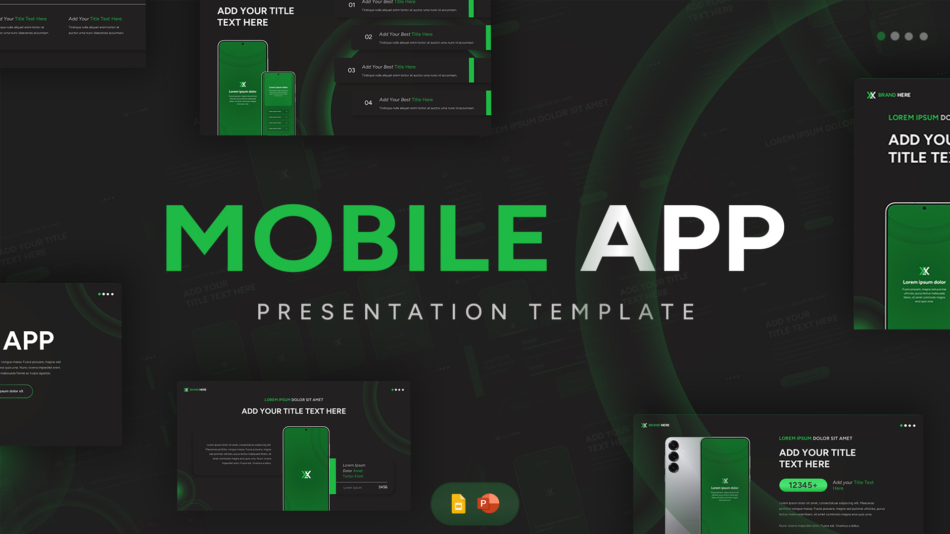
Use this template for app pitches to investors, product demonstrations to stakeholders, user experience walkthroughs, or marketing presentations for mobile solutions. The layouts include phone mockup placeholders, feature highlight formats, and business metric displays appropriate for mobile app contexts.
Geographic Organizational Chart Template
Presentations covering organizational structure, reporting relationships, or geographic distribution benefit from visual organization charts. The geographic organizational chart template for PowerPoint and Google Slides provides formats for showing how teams, regions, or divisions connect structurally.
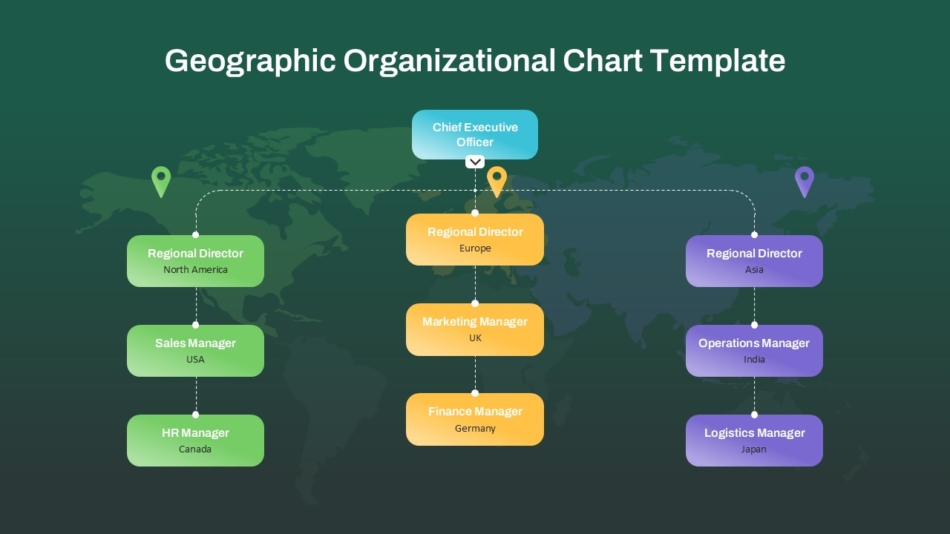
This works for organizational restructuring communications, onboarding materials explaining company structure, investor presentations showing leadership teams, or HR presentations covering reporting relationships across regions.
Leadership Word Cloud Template
Concept presentations, value communications, or thematic content benefit from visual word arrangements. The leadership word cloud for PowerPoint and Google Slides demonstrates how key concepts can be displayed visually rather than as bullet lists.
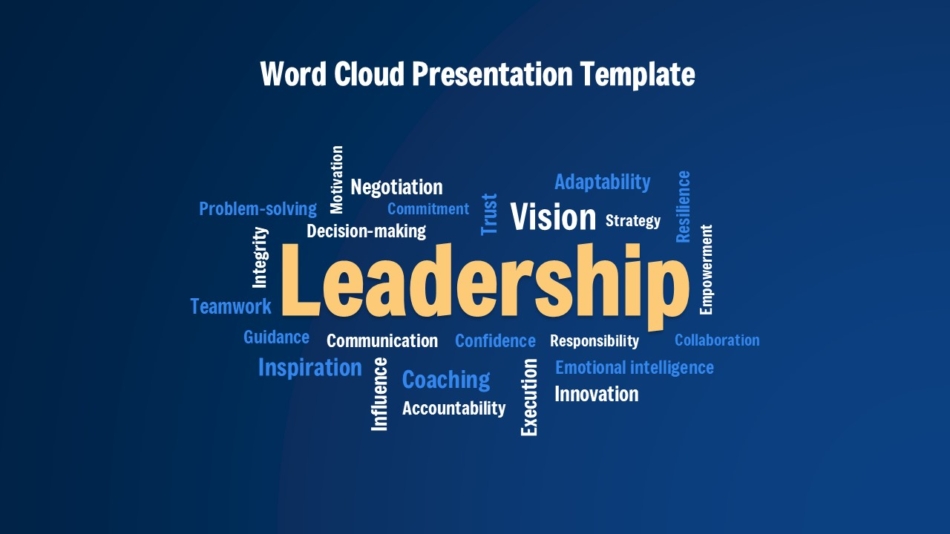
Word clouds work for introducing themes, showing survey results, presenting brand attributes, or any context where showing relative importance of related concepts adds value. While not appropriate for all business contexts, they offer alternatives to standard text layouts when thematic visualization serves the message.
Creative Multipurpose Template
General business presentations across varied topics benefit from flexible, professional templates that adapt to different content types. The creative multipurpose PowerPoint and Google Slides template provides this versatility while maintaining professional design standards.
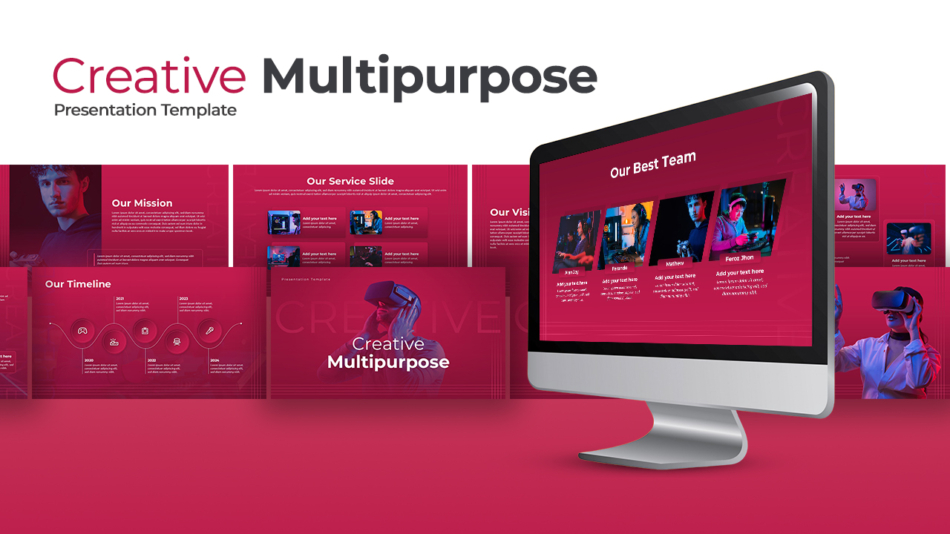
Multipurpose templates suit quarterly business reviews, department updates, strategy presentations, or any context where varied content appears within a single deck. The range of layout options means you won’t run out of appropriate slide formats as presentations develop.
Employee Training Plan Template
Human resources presentations covering training programs, skill development initiatives, or learning pathways benefit from structured formats. The employee training plan PowerPoint template organizes training program information clearly.
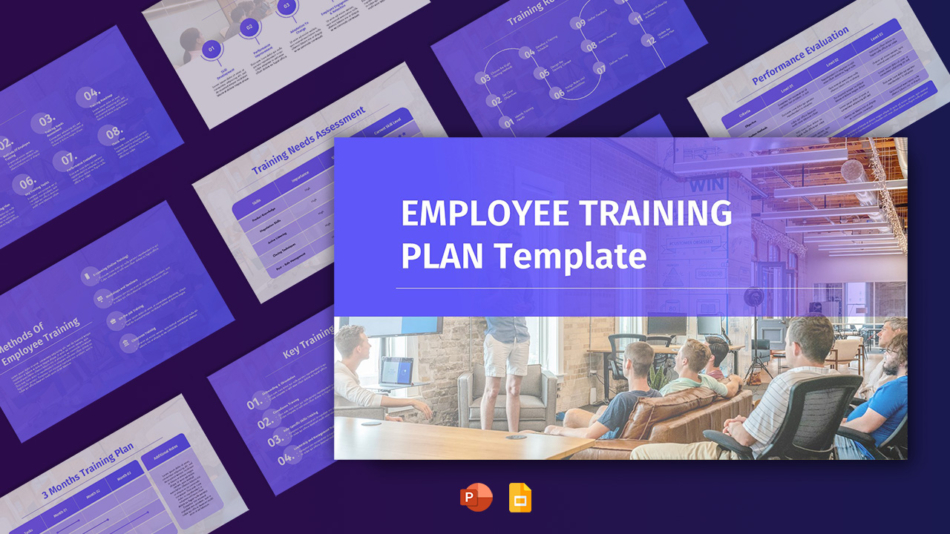
Use this for presenting training strategies to leadership, communicating learning programs to employees, documenting professional development plans, or outlining onboarding processes for new hires.
Jeopardy Template for Google Slides
Interactive presentations, training sessions, or team building events sometimes benefit from game-style formats. The Jeopardy template for Google Slides adapts the familiar game show format for business learning contexts.

While not appropriate for formal business presentations, this template suits training reinforcement activities, team meetings with interactive elements, or educational workshops where engagement matters as much as information transfer.
Special Purpose Free Templates
Some presentations serve specific purposes or audiences that benefit from specialized template designs.
Free 2000s Aesthetic Template
Presentations covering millennial culture, nostalgic marketing campaigns, or period-specific content benefit from aesthetic templates that match their subject matter. The free 2000s aesthetic template for PowerPoint and Google Slides captures the visual character of that era authentically.
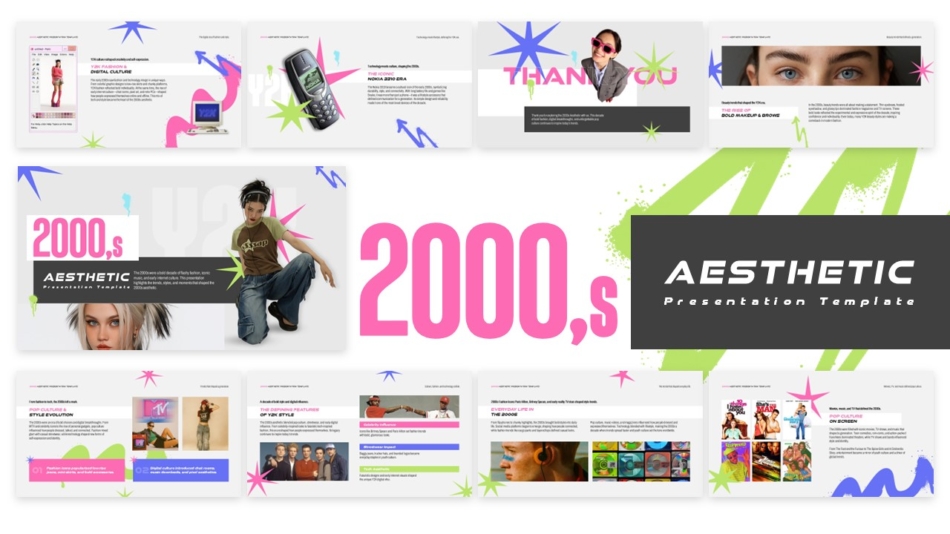
Use this for marketing presentations targeting specific demographics, creative campaigns with period themes, or any context where the 2000s aesthetic serves the content authentically rather than arbitrarily.
Free Volleyball Presentation Template
Sports programs, athletic departments, or community organizations benefit from sport-specific templates. The free volleyball presentation template for PowerPoint and Google Slides provides themed layouts appropriate for volleyball contexts.
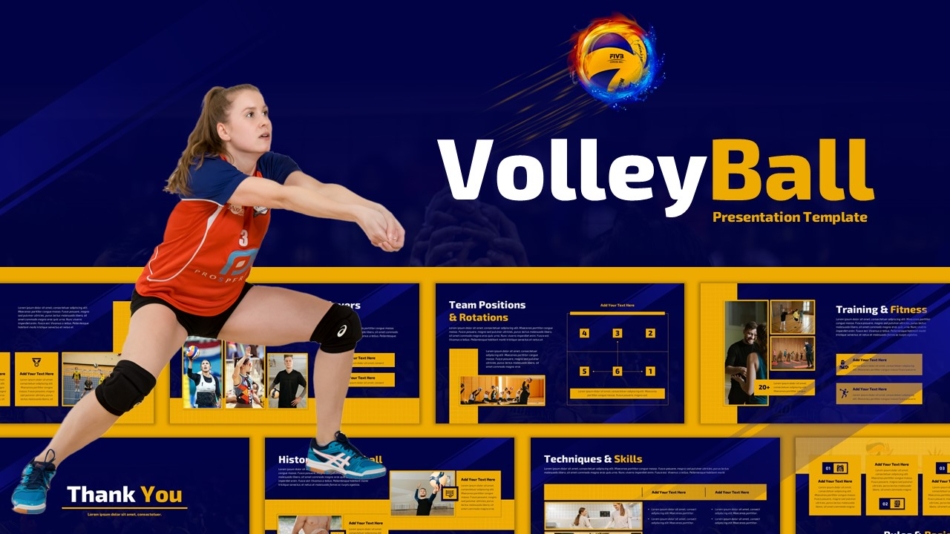
While specialized, sport-specific templates demonstrate how design can support content authenticity when visual theme genuinely relates to presentation purpose.
Free Earth and Space Science Template
Educational presentations covering scientific topics benefit from templates that match subject matter visually while maintaining readability. The free earth and space science template for PowerPoint and Google Slides provides this subject-appropriate design for astronomy, geology, or environmental science content.
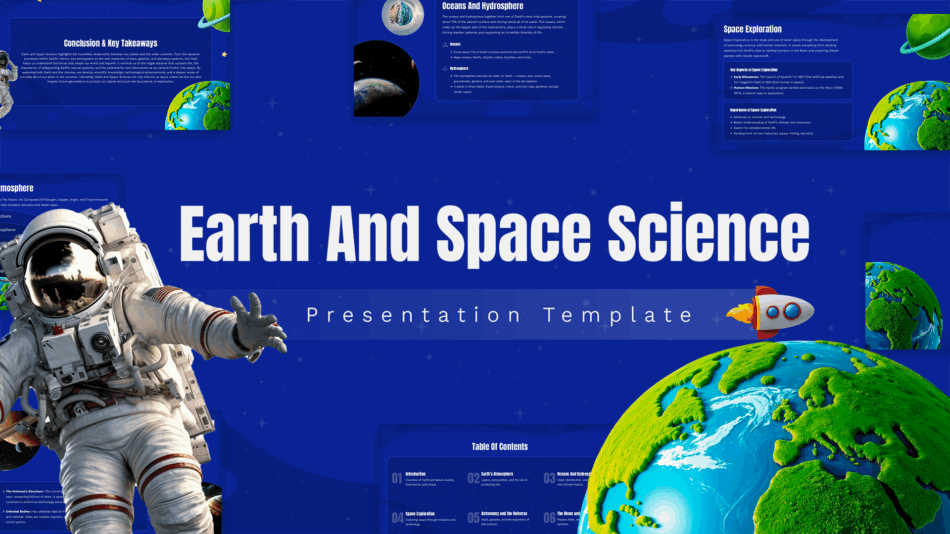
Science education presentations, research overviews, or academic content presentations work well with templates that visually reinforce rather than contradict the subject matter.
Design Elements That Make Slides Look Formal
Beyond choosing professional templates, understanding what makes slides look formal helps you maintain that quality as you customize templates with your content.
Proper Text Alignment
Text alignment follows consistent logic. Left-aligned text creates clean, readable blocks. Centered text works for headlines and titles. Justified text rarely works well in presentations because line-length variation creates awkward spacing in projected slides.
Random alignment where some text is centered, some left-aligned, and some right-aligned without clear reason looks disorganized regardless of template quality.
Consistent Slide Structure
Professional presentations follow structural patterns. If section dividers use full-slide images with overlaid text, all section dividers use this format. If data slides position charts in the center with supporting text below, all data slides follow this pattern.
This structural consistency helps audiences navigate presentations. They learn where to look for different types of information rather than needing to decode each slide’s layout independently.
Minimal Animation and Transition Effects
Professional presentations use simple slide transitions or none at all. The standard cut from one slide to the next works perfectly. Elaborate dissolves, wipes, spins, or zoom transitions distract from content and look dated.
Animation within slides should serve clear purposes like revealing bullet points sequentially or showing how elements relate. Decorative animation where objects fly in from edges or bounce into position undermines professional tone.
Differences Between Free and Premium Templates
Understanding what distinguishes free templates from premium options helps you make informed choices about when each serves your needs.
Slide Count and Layout Variety
Free templates typically include 10 to 20 slides covering basic needs like title slides, content layouts, and closing slides. Premium templates often include 50 to 100+ slides with extensive layout variations addressing many specific content types.
This variety matters when building long, complex presentations requiring numerous different slide formats. Free templates cover common needs. Premium templates handle edge cases and specialized content types.
Design Customization Options
Free templates provide solid starting points with limited alternative layouts. Premium templates often include multiple color scheme variations, different master slide designs, and alternative visual styles within the same template family.
This flexibility helps when brand guidelines require specific colors or when presentations need visual variety while maintaining consistent design logic.
Icons and Graphic Elements
Free templates typically include fewer unique icons and graphic elements. Premium templates may provide libraries of matching icons, diagrams, and visual components that expand design possibilities while maintaining style consistency.
When presentations need extensive iconography or specialized diagrams, premium templates’ included graphics libraries save time finding matching visual elements.
Commercial Use Rights
Free templates may have restrictions on commercial use or require attribution. Premium templates typically include full commercial rights without attribution requirements.
For client-facing presentations or materials representing commercial entities, understanding usage rights matters. Premium templates eliminate concerns about appropriate use.
When to Choose Premium Templates Over Free Options
Several situations justify investing in premium templates rather than relying on free alternatives.
Frequent Presentation Creation
Teams creating presentations regularly benefit from premium template investments. The time saved across multiple presentations quickly justifies costs. More layout options, better graphics, and streamlined customization reduce per-presentation effort.
Brand Consistency Requirements
Organizations with strict brand guidelines need templates extensively customized to exact brand specifications. Premium templates that include multiple variations and comprehensive master slide options make this customization more practical.
Specialized Industry Needs
Industries with specific presentation conventions or requirements benefit from premium templates designed for those contexts. Financial services, healthcare, legal, or highly regulated industries often have presentation standards better served by specialized premium templates.
Team Collaboration and Consistency
Multiple team members creating presentations benefit from premium template investments that ensure consistent quality across all presentations regardless of individual design skills. Shared premium templates standardize organizational presentation standards.
Download and Customization Guidance
Making the most of professional PowerPoint templates requires understanding how to download, implement, and customize them effectively.
Downloading and Installing Templates
Most templates download as PowerPoint (.pptx) files that open directly in PowerPoint or Google Slides. After downloading, open the file, save a copy with your project name, and begin replacing placeholder content with your information.
For templates saved as PowerPoint template (.potx) files, double-clicking creates a new presentation based on the template rather than opening the template itself. This preserves the original template for future use.
Customizing Colors and Fonts
Apply your brand colors through View, Master Slide, Colors rather than changing individual elements. This ensures color consistency across all slides and any new slides you add.
Similarly, update fonts through the master slide view for consistent typography throughout the presentation. Change fonts at the master level rather than slide by slide.
Maintaining Template Integrity
Respect the template’s spacing, alignment, and layout logic as you add content. Resist the temptation to manually adjust individual elements in ways that break the template’s grid structure or spacing system.
If content doesn’t fit the layout, either edit the content to fit or choose a different layout rather than distorting the template’s design to accommodate overly long text or oversized images.
Testing Before Presenting
Always review completed presentations in slideshow mode before actual presentations. Check that text is readable at presentation size, images display clearly, and slides flow logically. What looks good in editing mode sometimes reveals problems in full-screen presentation.
Understanding PowerPoint Alternatives and Compatibility
While PowerPoint dominates business presentations, understanding alternatives and compatibility helps you choose appropriate tools.
Google Slides vs PowerPoint
Google Slides offers real-time collaboration, browser-based access, and simple sharing that PowerPoint’s desktop application doesn’t match. PowerPoint provides more advanced design features, better offline reliability, and broader animation and transition options.
For most business presentations, either platform works well. The choice often comes down to organizational preferences and workflow rather than PowerPoint presentation quality concerns.
Many SlideKit templates work in both platforms, maintaining formatting across applications. This cross-platform compatibility matters for teams or organizations using mixed tools.
PowerPoint Alternatives
Several alternatives to PowerPoint exist, including Keynote on Apple devices, Prezi for non-linear presentations, and Canva for design-forward presentations. Each serves specific needs but PowerPoint and Google Slides remain the business standards due to universal compatibility and audience familiarity.
For business contexts, using standard tools prevents compatibility problems and ensures audiences can view presentations without technical difficulties.
Learning to Use PowerPoint Effectively
Templates handle design, but knowing how to use PowerPoint effectively helps you implement templates well and customize appropriately.
Basic skills like adding and formatting text, inserting and positioning images, creating shapes and lines, aligning and distributing objects, and managing slide order form the foundation for working with templates successfully.
Intermediate skills including working with master slides, applying and customizing themes, using alignment guides effectively, grouping and ungrouping objects, and copying formatting between elements allow more sophisticated template customization.
Advanced techniques like creating custom animations, building interactive elements, using slide zoom features, and integrating embedded media expand what presentations can accomplish beyond static slides.
For those wondering how to delete a slide in PowerPoint, the process is simple. Select the slide thumbnail in the left panel and press Delete, or right-click the slide and choose Delete Slide. This basic task becomes second nature but knowing it explicitly helps users just learning PowerPoint.
Choosing the Right Professional Template
Professional PowerPoint templates make business presentations look organized, credible, and thoughtfully prepared. The best templates combine clean layouts, readable typography, purposeful color use, comprehensive slide variety, and professional visual elements into cohesive design systems.
Free templates serve many business needs effectively, providing professional starting points for project presentations, training materials, organizational communications, and internal reviews. Premium templates offer more extensive options suitable for high-frequency presentation creation, high-stakes business contexts, or specialized industry requirements.
SlideKit provides both free and premium professional PowerPoint templates that work across PowerPoint and Google Slides, maintaining compatibility and design quality regardless of platform. Whether choosing free templates for occasional presentations or investing in premium options for ongoing needs, starting with professional design foundations produces better presentations with less effort.
The templates covered in this guide address diverse business presentation needs while maintaining professional standards appropriate for business contexts. Download the options that match your current presentation requirements and start building slides that look as credible as the work they represent.